Friday, October 18, 2013

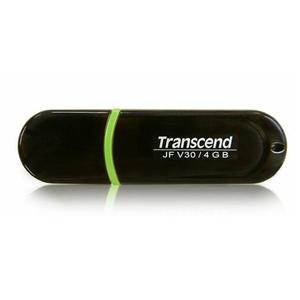
Top 4 Methods To Remove Write Protection From Your Pen Drives / Memory Sticks


In most of the USB based flash/pen drives, write protection is provided via the small notch. First of all look for it in sides of your drive. It’s even marked with lock/unlock symbol. Move/slide the notch to unlock position (means releasing write protection) before you perform any file operations in your drive such as copy/paste/format etc. After that you can slide back the notch to lock position safely.
But many of the pen drives don’t provide hardware lock/notch for write protection. Instead they back it up by means of some software/tool. From there you can change the write protection lock/unlock option. Refer to your pen drive’s manual for more details in this regard as different pendrive have diferent ways to to unlock them or otherwise you can also take help of some tools to unlock them.
Best Methods To Remove Write Protection From Your Memory Sticks / Pen Drives Goes here (ENJOY AND POST FEEDBACKS TOO)
METHOD #1 
  1. Open Registry editor of your PC
  2.  For this you should type command “regedit” on run.
  3. Successively navigate to following linkHKEY_LOCAL_MACHINE\SYSTEM\Currentcontrolset\control\storatedevicepolicies( Note: if you can’t find “ storatedevicepolicies ” after “control” folder then you need to create it. For that follow instructions       mentioned below )
    • Open a new note pad file.
    • Copy this
      cd\reg add “HKLM\System\CurrentControlSet\Control\StorageDevicePolicies” /t Reg_dword /v
      WriteProtect /f /d 0
    • save it as DISABLEWP.BAT
    • Then copy it to start up folder.
  4.  In right side u will be getting writeprotect option, just right click that and modify the hexadecimal value from 1 to 0
  5. Restart your PC and enjoy!!!!
    ( Still having problem???   Don’t worry try other methods below )
============================================================================================
METHOD #2
If you have transcend pen drive infected by 9u.exe which is a write protect virus then the following works like a charm:
1) Download JetFlash online recovery from:
www.transcendusa.com/Support/DLCenter/Software/OnLineRecovery.exe
2) Run the program
3) Specify the capacity of your drive eg.512 MB, 1 GB …..etc
4) Choose “repair and erase all data” OR ” repair and keep existing data”
5) Progress bar starts…….completes
6) Notification appears —” format complete”
7) Unplug and plug your drive and …..presto
enjoy!!!!

( Still having problem ?   Don’t worry try other methods below )

============================================================================================
Method #3 
1. Start > Run  -> type “CMD” and press enter
2. type< diskpart
3. type< list volume
4. type< select volume # (# is the number of the USB HDD you’ve pluged in)
5. type< attributes disk clear readonly
(If you need help while typing commands then type “HELP FORMAT” on command prompt)
============================================================================================
METHOD #4 
There are a series of options in the Group Policy Object Editor that deal with read/write permissions on hard drives and removable media.  I basically changed their individual settings from “Not configured” to “Disabled”.
Start -> Run… -> gpedit.msc -> OK
Computer Configuration -> Administrative Templates -> System -> Removable Storage Access
In here I disabled all of the “Deny read access/write access” options; you may only want to disable the ones relating directly to the type of media that you want to access.
Here are the ones I changed:
Removable Disks:  Deny execute access
Removable Disks:  Deny read access
Removable Disks:  Deny write access
Double-click each one and select the ‘Disabled‘ radio button.
Do the same as above, except the first step is “User Configuration” instead of “Computer Configuration
(Best result if you try both method #1 and method #4 together)
Enjoy!!!
All the methods mentioned are tested and they works well in my PC.
Please don’t forget to leave your feedbacks below as comment and lets discuss if more tricks are needed…
Thanks and Regards
GAMER
Thursday, October 3, 2013

An amazing chance to learn online for free

It's a largest online learning organisation
click here to register on the website for free
you can pick any courses from mechanical to it related fields
enjoy !! your time on the internet

Friday, September 27, 2013

How to get an extra 10GB of Google Drive space for free


Google gives all comers 15 gigabytes' worth of free storage across Gmail, Google Drive, and Google Plus Photos. Not a bad chunk of space just for having a heartbeat.
Of course, more is always better, especially when you don't have to pay for it. And Google is now offering exactly that, though there are a couple small catches.
From now through Sept. 26, you have the opportunity to score an extra 10GB of Google Drive space, no extra charge.
The requirement: Install the new Quickoffice app for Android or iOS--which, incidentally, is also now free. Then sign into your Google account via that app. Presto! You get another 10GB of gratis storage.
What's the catch? First, it won't appear right away; Google says to look for the space increase "in the next few weeks." Second, this isn't a permanent bump, though it is a lengthy one: you get the freebie for the next two years.
Eh, no biggie. That's 2015's proble

10 windows 8 apps you need to download first


 Windows 8 is all about the apps, so it's important to find the best ones for your unique needs. Unfortunately, you need to sift through a lot of crap apps in the process, especially if you're not using a Windows 8 tablet; desktop and laptop PC users don’t need to worry about the lion’s share of Windows 8 apps, because they're usually single-purpose tools designed to replicate the functionality of a full PC on a mobile device. Since you have access to a full Windows desktop you don’t need just another way to look at photos or surf the Web—you need a way to do those things better.
With that in mind, we’ve taken the liberty of sharing some of our favorite Windows 8 apps in order to help you get up to speed as quickly as possible so that you can take advantage of all that Windows 8 can offer. Microsoft does a pretty decent job of covering your basic computing needs with apps like Messaging, Mail, SkyDrive and Skype, but there are a few excellent third-party apps you should download post-haste.
Problem is, the Windows Store is still in its infancy and thus lacks a lot of free apps for well-known services such as Twitter and Facebook; but even though Microsoft’s digital distribution platform can’t yet match the variety or breadth of apps available in the Apple and Google ecosystems, it still has more than enough Windows 8 apps to make your head spin. We sifted through dozens and dozens of the most popular Windows 8 apps available at launch, then tested a few dozen more and compiled this list of our favorites. While these apps may not satisfy all your computing needs (we just couldn't find a great Twitter management app, for example) they should help you get the most from your Windows 8 PC.

Netflix

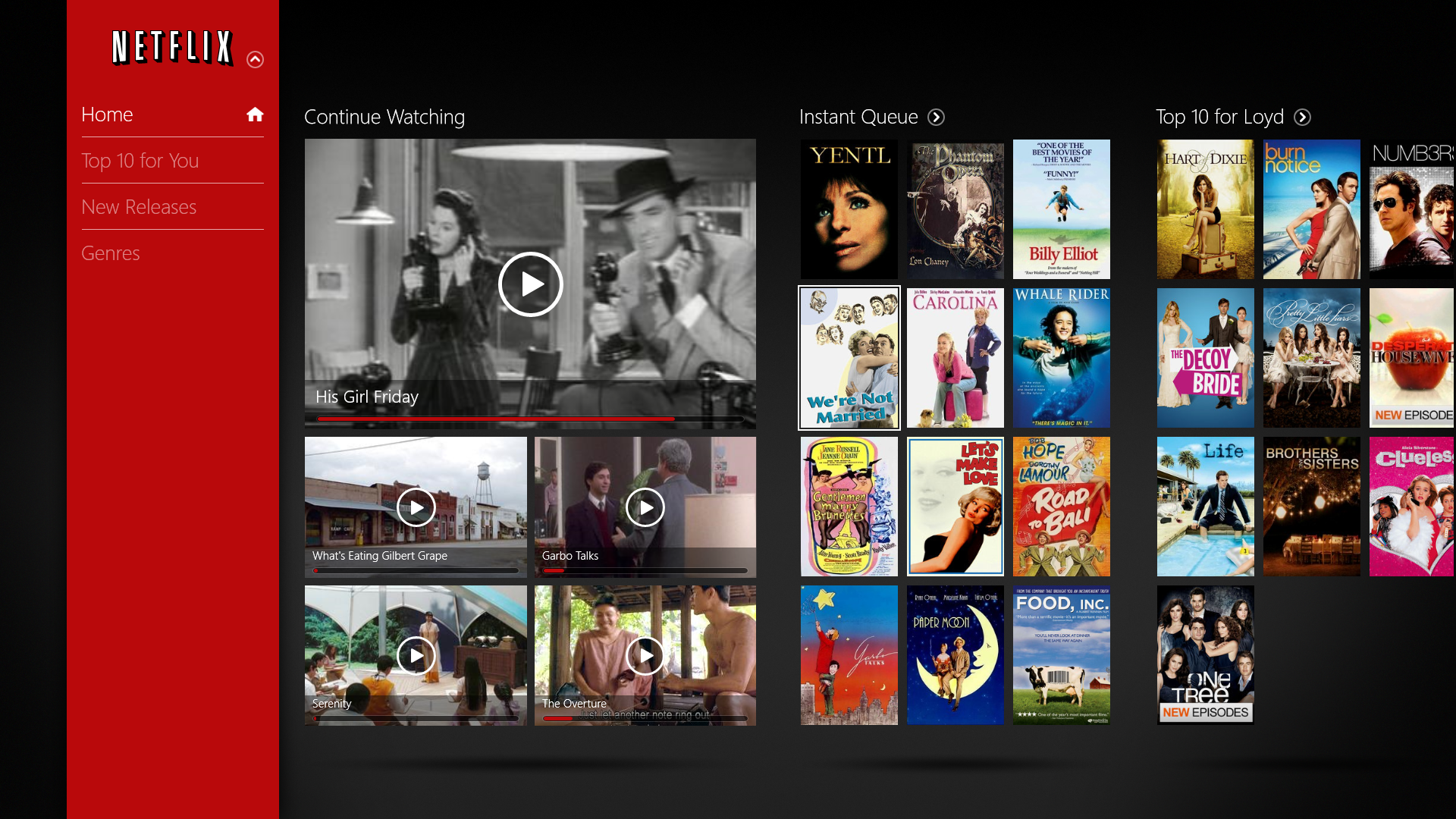
The Netflix app for Windows 8 is free to download and easy to use, with an attractive tile-based interface that's intuitive to navigate on a touchscreen. Streaming movies through the app also seems smoother than streaming them through your browser, which is reason enough to launch Netflix right from your Start screen.

IM+

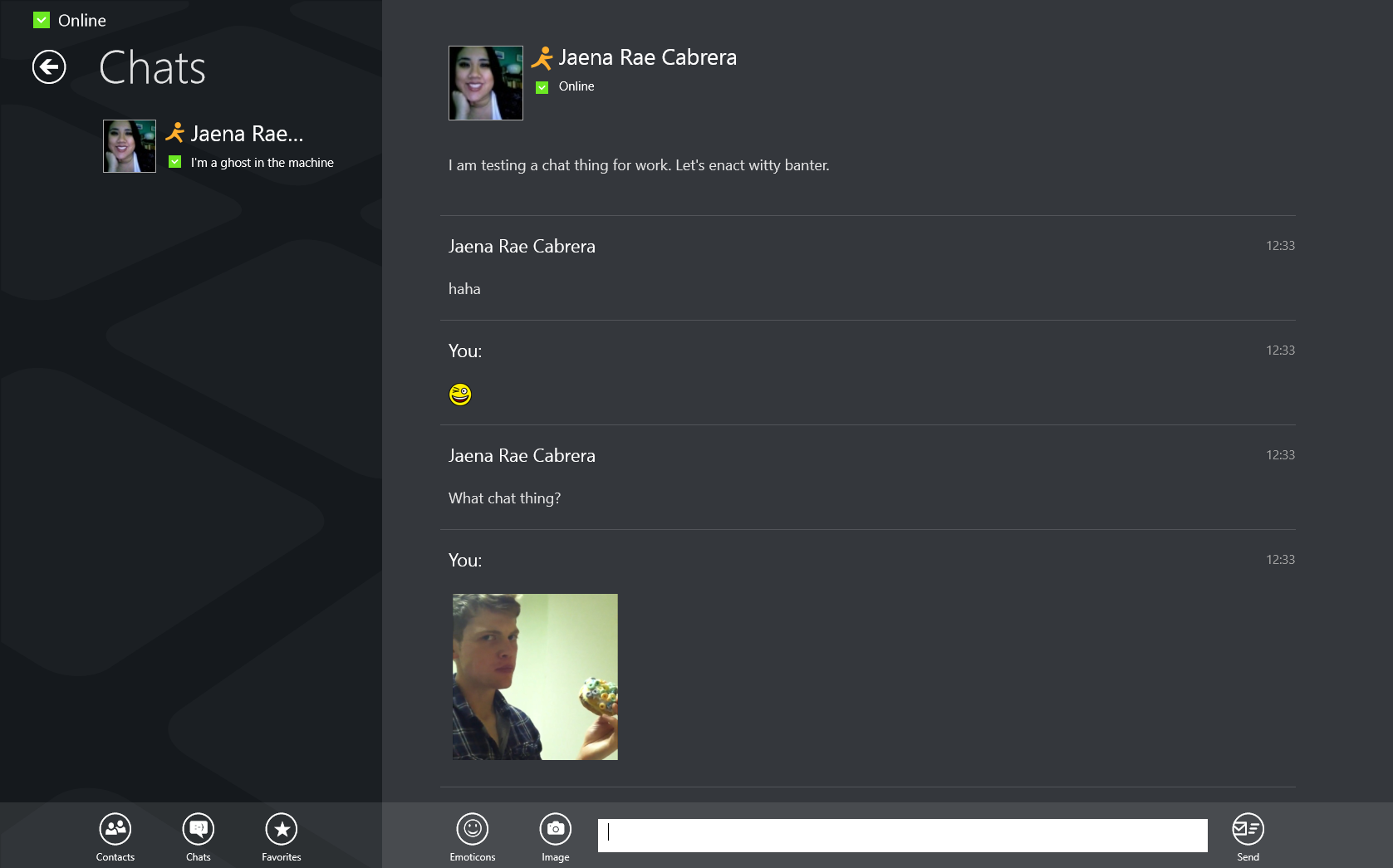
Everyone needs a good instant messaging client, and although the Windows 8 Messaging app is functional enough, as of publication it supports only the Windows Messenger and Facebook Chat services. That may change in the future, but if you want to chat with all your friends right now across disparate networks (including AIM, Facebook, GChat, ICQ, and Jabber) Shape's IM+ app has you covered. It’s free, it supports a wide variety of chat networks, and it lets you enable push notifications so that you can stay on top of your social life no matter what app you’re using.

TuneIn Radio

Over 14,000 radio stations exist in the United States, and TuneIn Radio will let you listen to almost all of them, plus a bunch more from across the world, for free. While you could always stream your favorite radio station from your browser, TuneIn does a fantastic job of presenting a huge assortment of AM/FM radio streams and podcasts in one slick app that’s simple to navigate. The sound quality is great, playback rarely stutters, and the TuneIn live tile displays information on what’s currently playing. You can choose from over 70,000 talk shows, sports broadcasts, news programs, local radio broadcasts, and podcasts.

eBay

The eBay app is beautiful, free and easy to use, but most importantly it takes advantage of the Windows 8 Start screen in ways that make it more useful to savvy shoppers than the standard eBay website. You can use the app to quickly and efficiently sort through your tracked auctions and saved eBay searches, and you can pin the Daily Deals tracker to your Start screen to stay abreast of savings opportunities at a glance.

Microsoft Minesweeper

Windows 8 is the only version of Windows in recent memory that doesn't come with Minesweeper preinstalled, but you can download it for free if you’re feeling nostalgic. At its core the classic guessing gameplay of Minesweeper is the same as it ever was, but Microsoft has updated the Windows 8 version with a fresh coat of paint and some new features, including an Adventure mode with traps and treasure, online leaderboards, and the ability to log in with your Xbox Live account and see when your friends are online or earn Minesweeper Achievements.

Clock

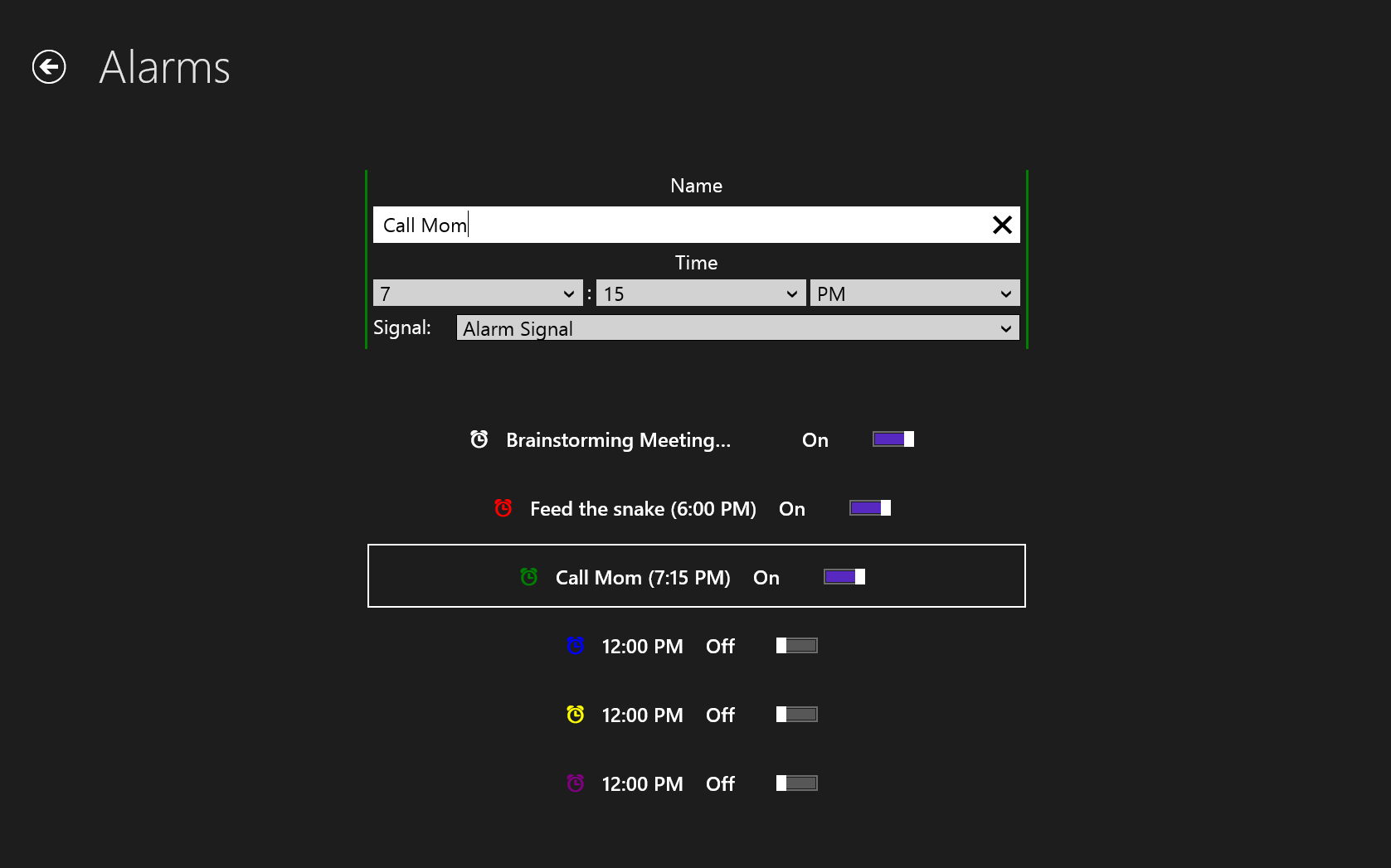
Jujuba Software's app does what it says on the tin, placing a live tile on your Start screen that shows the time. You might be wondering why you'd need an app to do such a simple thing; surprisingly, in Windows 8, Microsoft actually failed to include an option for users to see what time it is without pulling up the Charms bar to display the system clock. The Clock app is a free, simple alternative for anyone who wants the convenience of being able to check the time at a glance without pulling up a menu, and you can also use it to set a timer, run a stopwatch, or set alarms for yourself.

SmartGlass

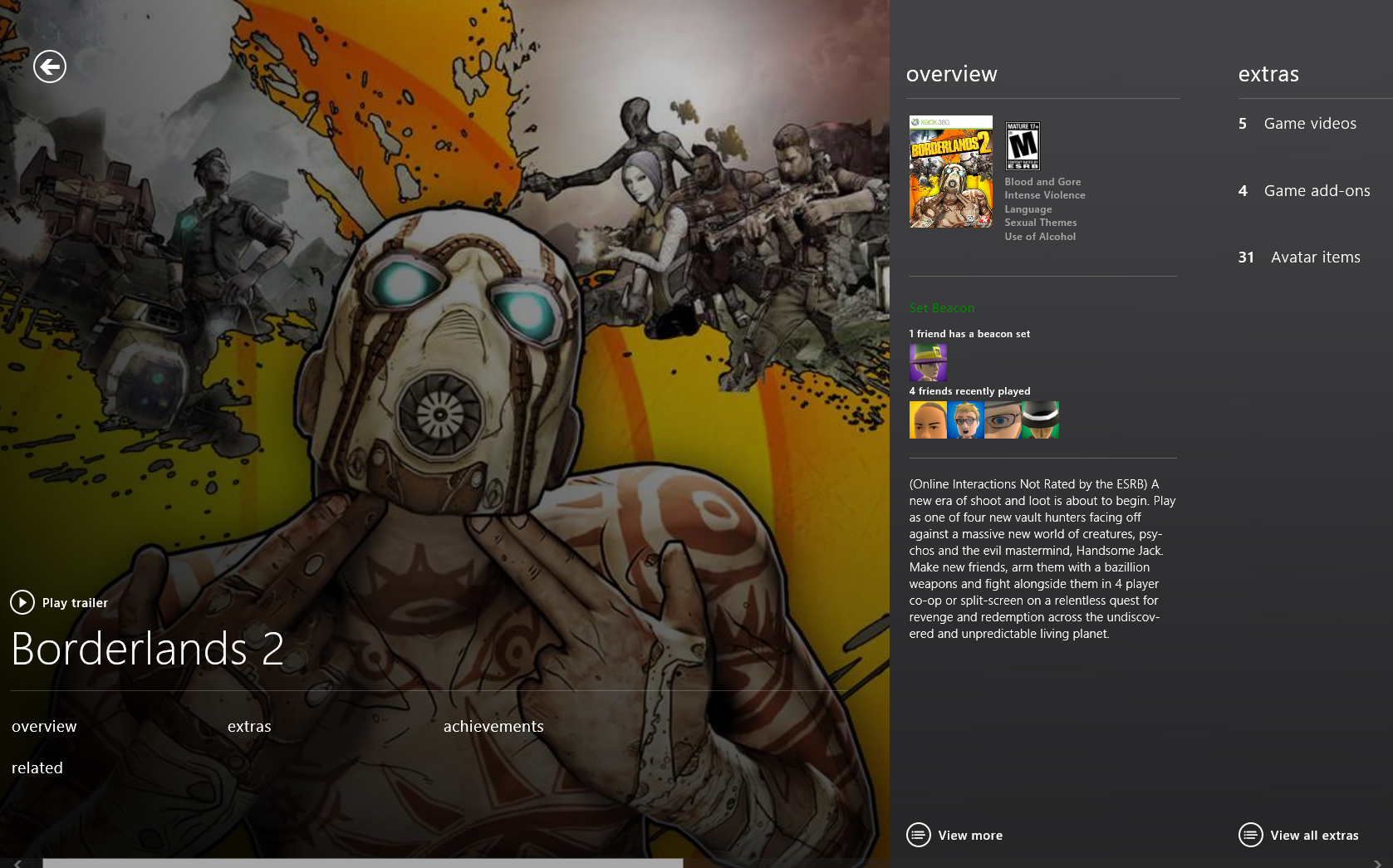
Microsoft's SmartGlass functions as a second screen for your Xbox 360, keeping track of what you’re watching or playing and offering complementary information such as Achievement charts and additional video content. You can also use your PC as a remote control for your Xbox 360, launching videos or games on your HDTV from within SmartGlass. In addition, the app allows you to track real-time stats while watching sports, queue up songs in a dance game, or check your in-game GPS while racing against your friends in a motocross title. SmartGlass has been available in the Store for some time now, but Microsoft is updating the app with a bevy of new features to accompany the Windows 8 launch.

StumbleUpon

Whether you’re an avid Stumbler or a first-time user, consider adding the StumbleUpon app to your new Start screen. StumbleUpon is a fantastic way to discover new and interesting things online, and the Windows 8 app makes it even easier to stumble upon your next favorite video or article by updating the live tile with websites tailored to match your tastes. Installing the Windows 8 StumbleUpon app will also allow you to share websites, audio, and video with StumbleUpon via the Share Charm. It's a great tool for injecting a little serendipity into your online existence, and it's completely free to use.

HowStuffWorks

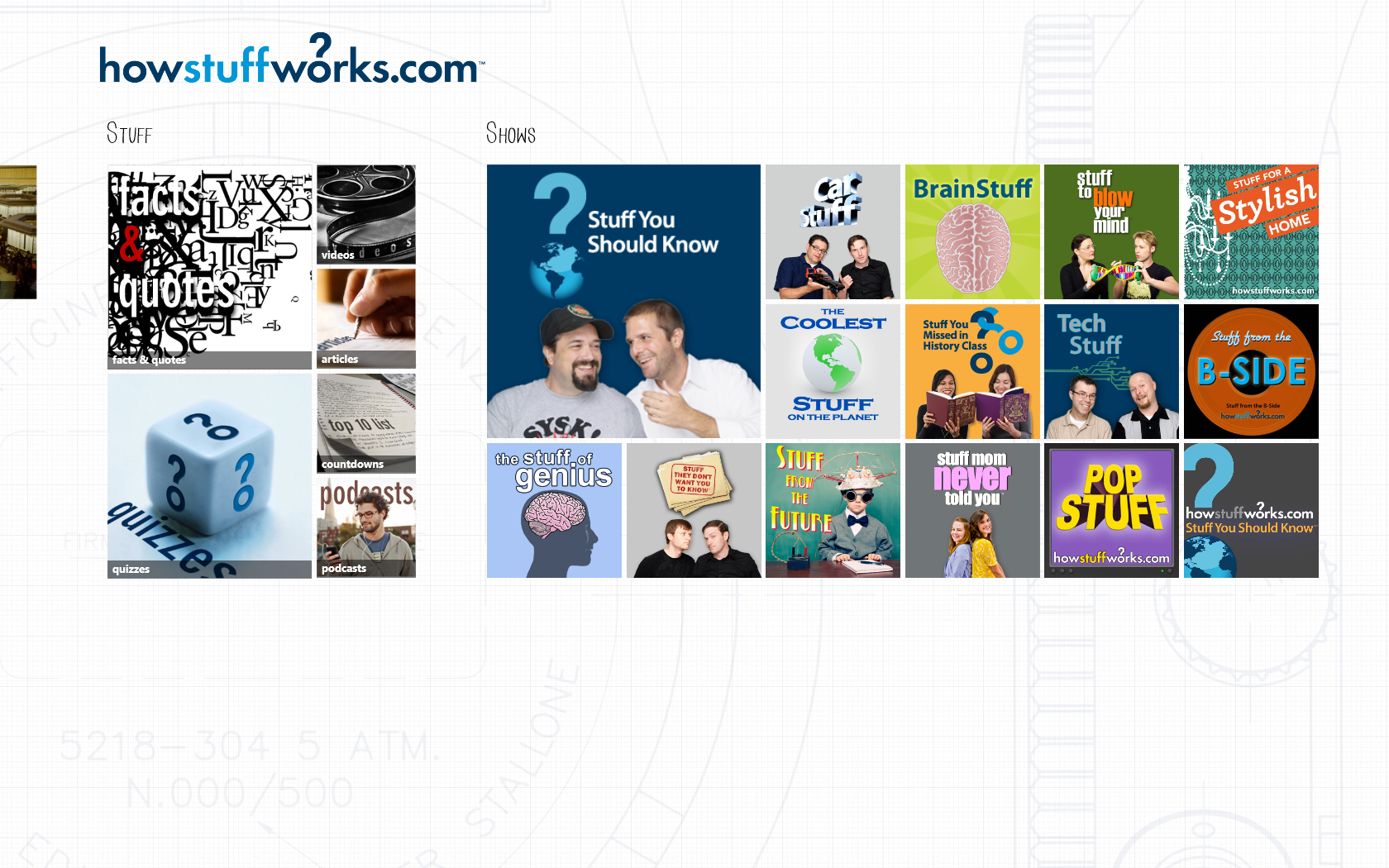
The HowStuffWorks Windows 8 app basically bundles all the excellent articles, videos and podcasts from the HowStuffWorks website into a package and plops it down on your Start screen with a live tile that updates you whenever there's something new to check out. The app itself has a few peccadilloes (the tiles look cramped together and the podcasts don't keep playing when you switch to another app) that suggest it was rushed out to hit the Windows 8 launch date, but HowStuffWorks is still a fantastic free app that deserves a permanent spot on your Start screen.

MovieGuide

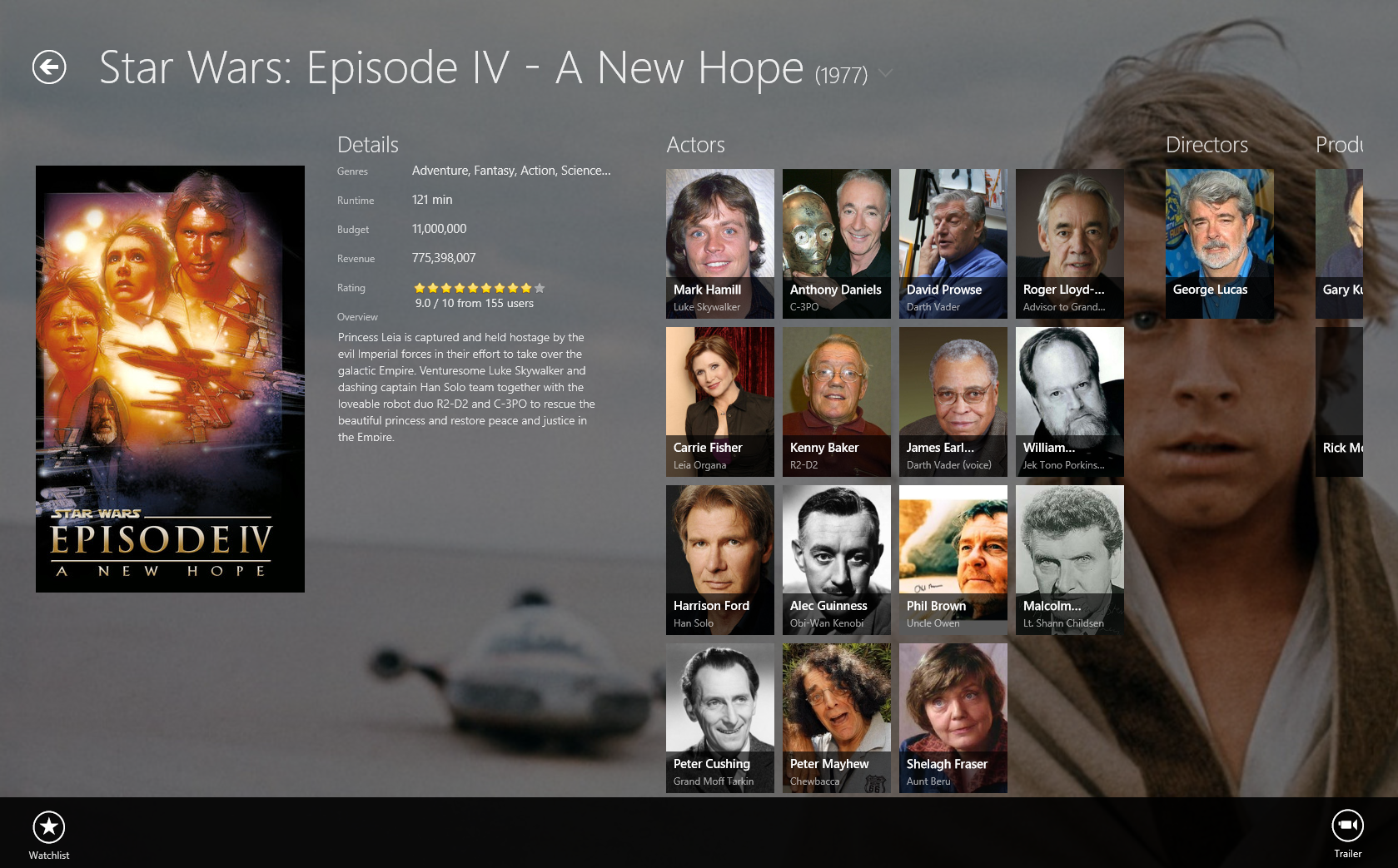
Zühlke Engineering's MovieGuide app, a handy tool for movie nuts, combines the film trivia of IMDb, the variety of trailers on YouTube, and the list-making feature of Flixster into a single app. Some of the information on films and actors (especially the more obscure ones) is sourced from Wikipedia and can be a little anemic, but the beautiful design and easy discovery paths more than make up for that. Seasoned cinemagoers can probably skip this app, but it's perfect for budding film buffs.

Tuesday, August 27, 2013

free airtel internet


  • Hello friends and loyal readers of TipsPlanet, I got a very good response for previous Airtel VPN Trick 2013. Today I'm going to share a new Free Airtel Internet trick for PC, this trick gives enough speed for surfing not downloading. This trick is 100% working all over the country and tested by me.

    Must See : Airtel High Speed VPN Trick March 2013 - WORKING

    Before I start discussing about this trick I want to tell you that you can read other tricks and hacks for other service providers like Idea, Reliance, Tata Docomo , Uninor and BSNL to check out click here.


    Now without wasting a single minute lets get back to the FREE Airtel Internet Trick. First of all I want to tell you that all the tricks on this blog are very easy to implement that is why you need not to worry.

    STEPS FOR FREE AIRTEL INTERNET TRICK 2013 :
    Address : airtel.in/freezone OR airtel.in/data
    Port : 80
    • Go to Proxy Setting and input following data
    Proxy Address : ems09.your-freedom.de
    Port : 80
    Connection Mode : HTTP
    • In Account Information Tab Input Your Username and Password
    • Save and Exit
    • Start Connection and Wait for few Second
    • Open Mozilla Firefox >> Tools >> Options >> Advance >> Network >> Manual proxy configuration and input following proxy
    HTTP Proxy: 127.0.0.1
    Port: 8080
    • Downloading with IDM : For downloading files with IDM open IDM go to >> Downloads >> Options >> Proxy >> Check Use HTTP Proxy
    Proxy Server Address: 127.0.0.1
    Port: 8080
    • Enjoy Free Surfing and Downloading :)

    SCREENSHOTS :


    free mobile recharge

    earn 10 times for free by joining in the website


    an oppurtunity to get rs 3.60 free for daily

    click here  to register for free

    play quiz daily and send messages through that earn at 100x than any other website

    enjoy this trick before blocked.....

    advantages

    1. 10.rs will be credited for sign up

    2. one lucky winner out of 10 will get 100 .rs

    3. earn by playing quiz

    4. earn by sending sms

    Monday, August 26, 2013

    New Docomo Trick

    Docomo

    *New Docomo Trick*


    Well, for the first time, we're publishing a Docomo trick as requested by many users

    This is not really a trick, but a promotional offer from Docomo

    sms: ANDROID to 54321


    You will receive a confirmation sms saying you can use 500 MB of Internet free for 6 months. Thanks to Docomo :-)